The CallRec Desk app icon: a white telephone handset on a blue rounded square with a red record dot.

Take and record your phone calls on your PC

CallRec Desk is a free Windows app. A small ESP32 board sits on your PC's USB port and works as a Bluetooth bridge: your phone pairs with it like a car kit, and the call comes through your own headset and mic — with a record button.

Download for Windows Source code

Free and open source · Windows 10 and 11 · iPhone and Android, no phone app

The CallRec Desk window showing an incoming call from a demo contact, with Answer, Hang up, Record, Mute mic and Audio to PC buttons and a list of recordings.

How it works

Your phone never knows it isn't talking to a car kit. The bridge handles the Bluetooth, and the Windows app handles the audio.

  1. Your phone

    Pairs with the bridge as CallRec, exactly like a car kit. iPhone or Android, and no app on the phone.

  2. The ESP32 bridge

    A NodeMCU ESP-32S on a USB cable. It speaks hands-free Bluetooth to the phone and sends the call down the USB serial link.

  3. CallRec Desk

    The Windows app answers, dials, records to WAV, shows contacts and messages, and drives a Stream Deck.

  4. Your headset and mic

    Pick any Windows playback and recording device. Recordings land in Documents\Call Recordings.

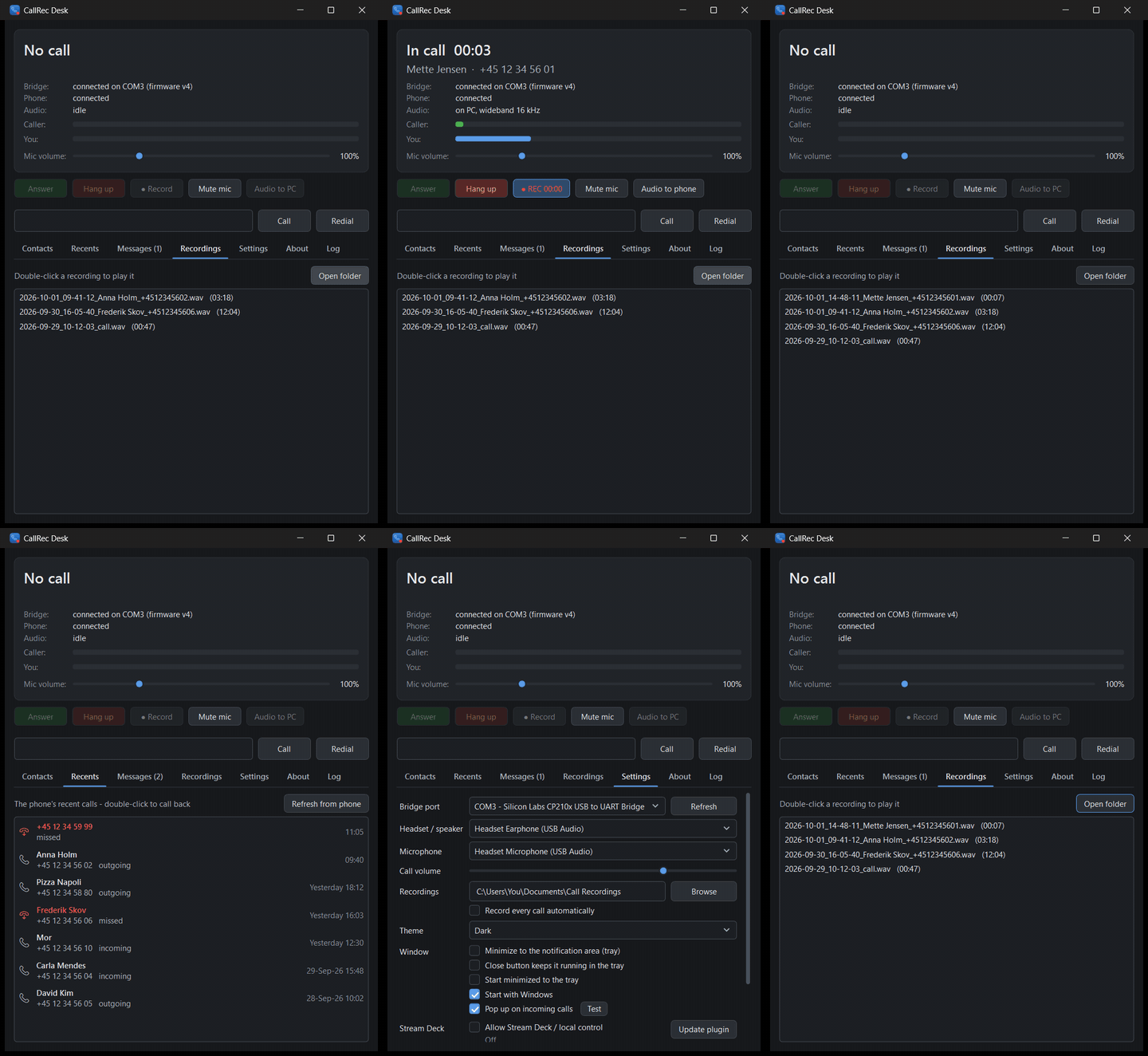
Animation of CallRec Desk in demo mode: an incoming call is answered, recorded and muted, then contacts, recent calls, an arriving text message and a reply, the settings tab switching between light and dark theme, and the About tab.
CallRec Desk in its built-in demo mode. The contacts, numbers, messages and recordings shown are made up.

What it does

Take the call — and record it

Answer, reject and hang up from the PC, dial a number or redial the last one. The window pops to the front when the phone rings.

  • Record with a button, or switch on record every call automatically.
  • Stereo WAV at 16 kHz — left is the caller, right is you — named yyyy-MM-dd_HH-mm-ss_<number>.wav.
  • Mute, level meters, call volume synced with the phone's volume buttons, and a 0–400% mic slider that sets what the caller hears.
  • Audio to phone / Audio to PC moves a live call between your headset and the handset.
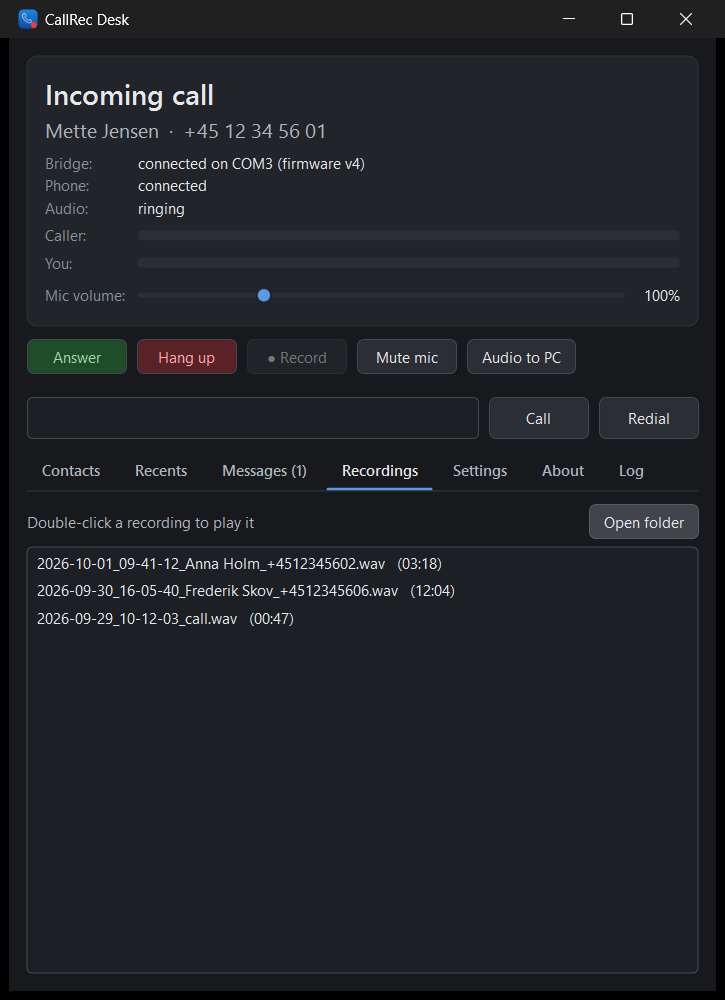
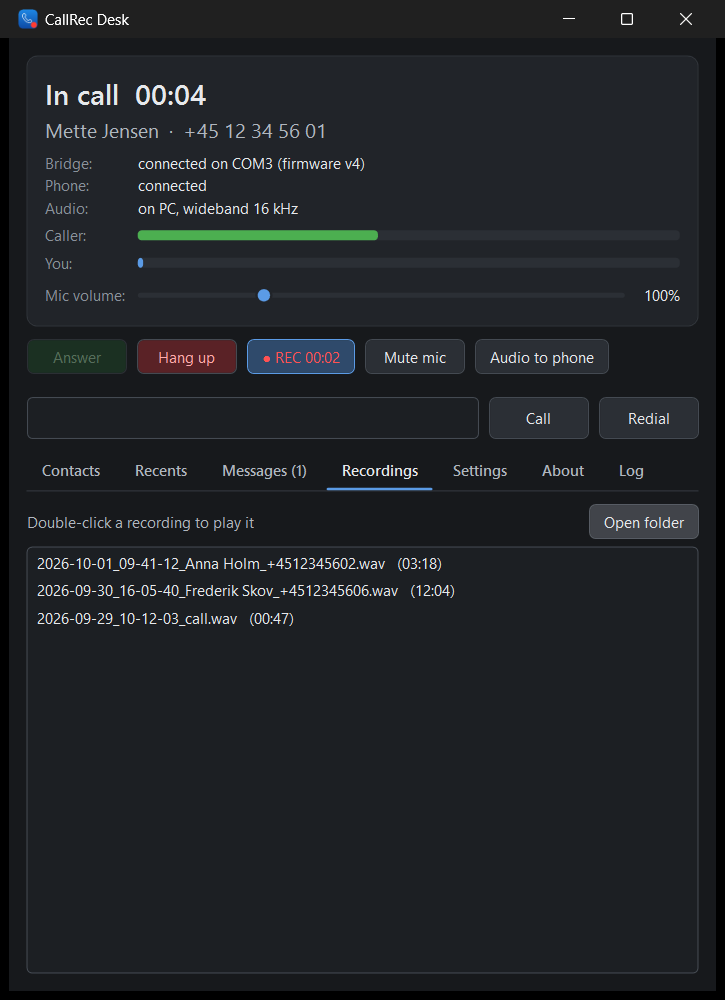
CallRec Desk showing an incoming call from a demo contact, with the bridge connected on COM3 and the caller and microphone level meters. CallRec Desk during a call, with a running recording timer and the Hang up, Record and Mute mic buttons active.

Contacts and recent calls, straight from the phone

The bridge syncs your phone book and call history over Bluetooth, so callers show up by name instead of by number. You can also save numbers in the app itself.

  • Search contacts and call them with one click.
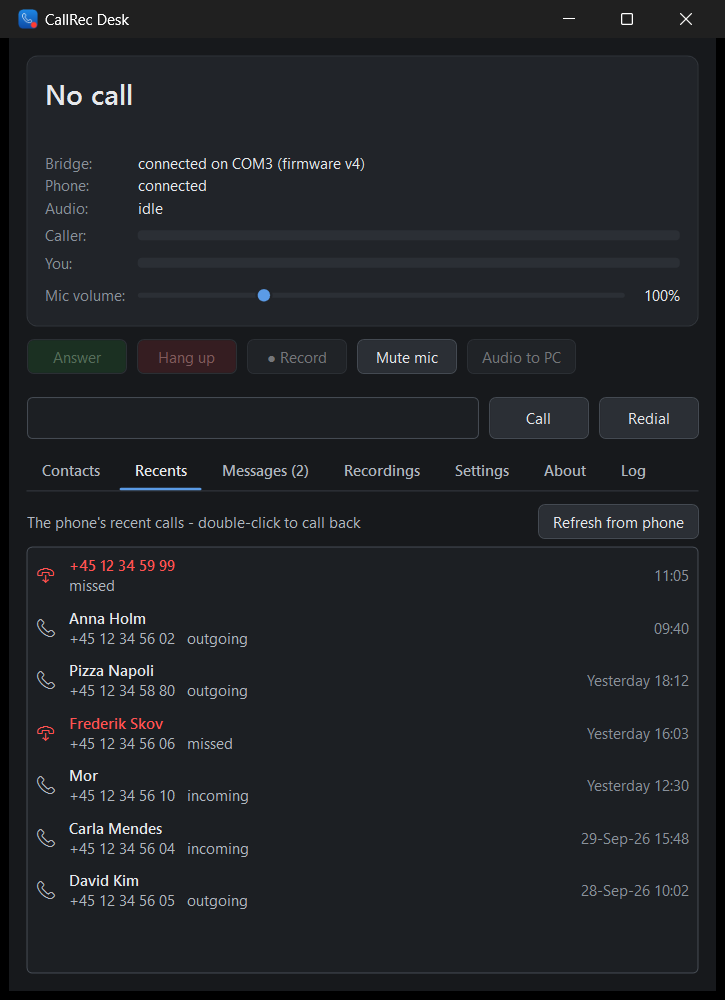
  • Recent calls with direction, name and time.
  • An empty sync from the phone never wipes what you already have.
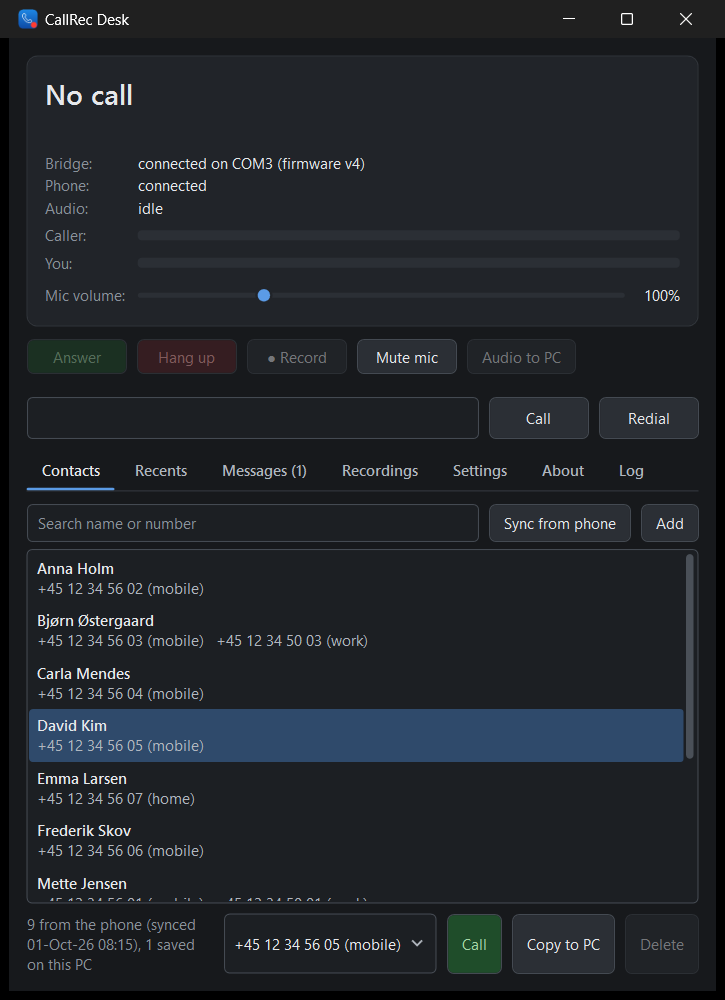
The Contacts tab of CallRec Desk, listing demo contacts with their phone numbers and a search box. The Recents tab of CallRec Desk, listing demo incoming, outgoing and missed calls with times.

Read and send text messages

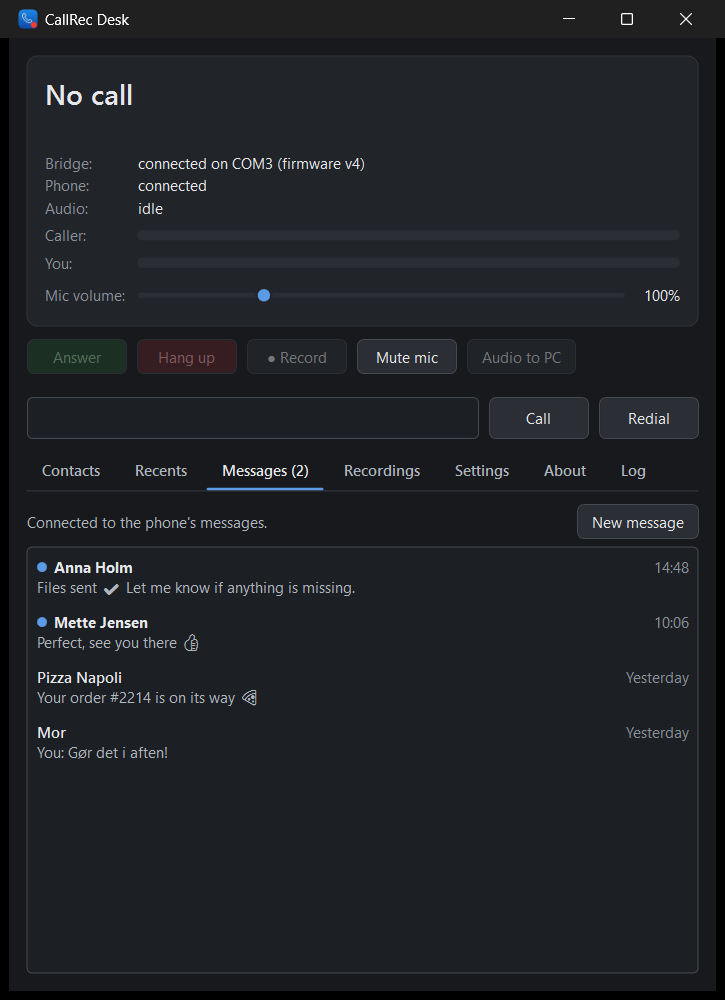
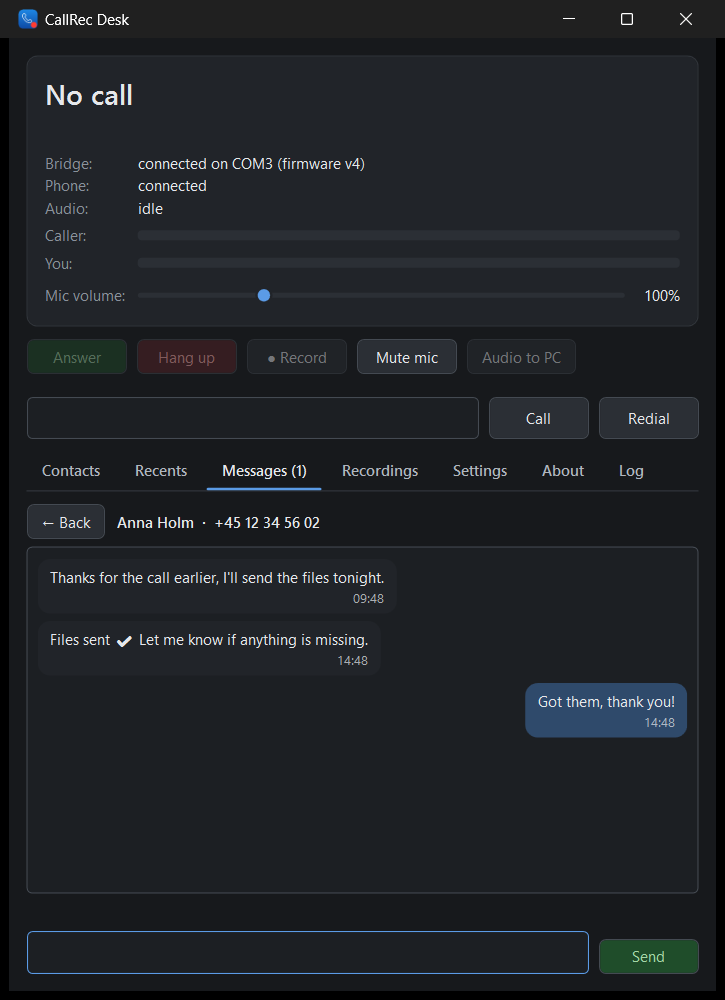
A Messages tab with proper conversations: contact names, unread dots, a chat thread and a Send box. New texts arrive live and pop up in the tray.

  • Start a new message to a number or a contact name.
  • Opening a conversation marks it read on the phone too.
  • History is kept on the PC, because phones only share their newest messages.
The Messages tab of CallRec Desk, showing a list of demo conversations with unread markers. An open demo conversation in CallRec Desk, with sent and received messages in a chat thread and a Send box.

Stream Deck, with call and contact profiles

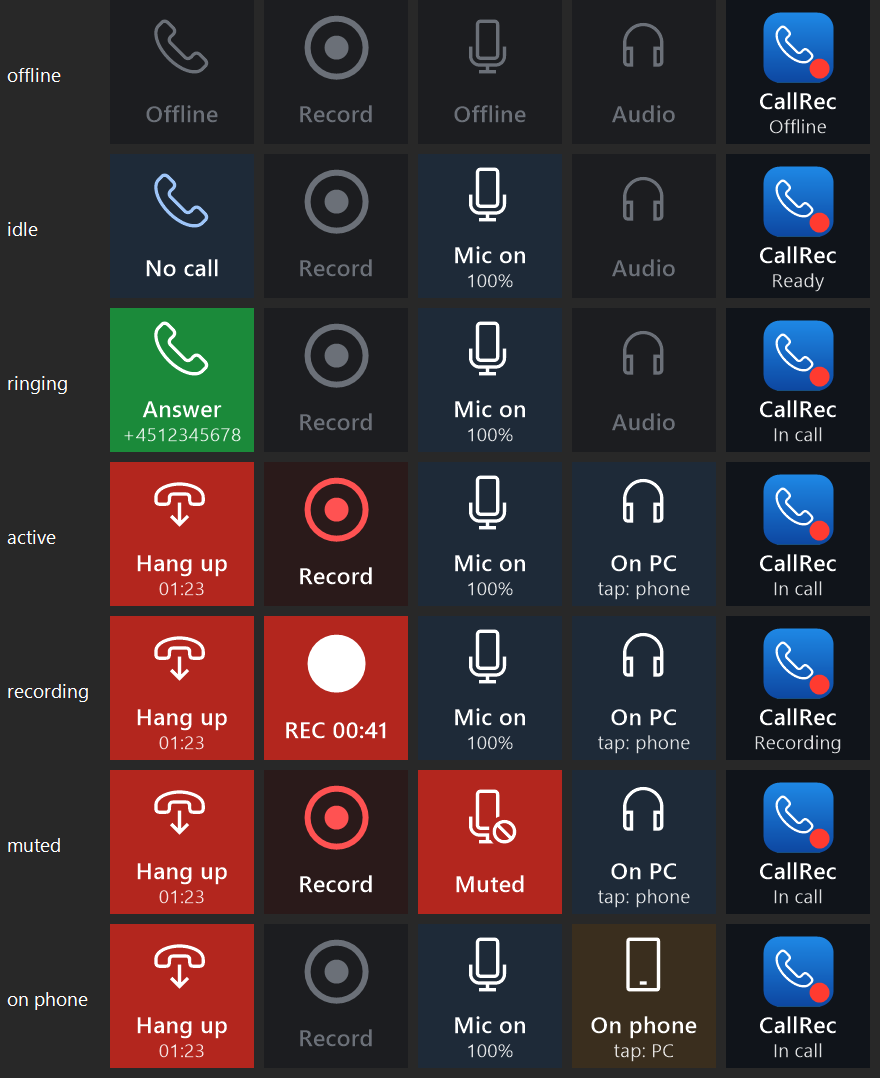
The app installs its own Stream Deck plugin. When a call rings, your Stream Deck XL or Stream Deck + switches to a CallRec Desk call profile and switches back when the call ends.

  • Live keys: Answer, Decline / Hang up, Record with timer, Mute, Audio PC / Phone, call volume, Messages, caller and phone status.
  • A Contacts key opens your contact list as a small on-screen card — and a contacts profile on the keys, 24 per page on the XL.
  • Dials on the Stream Deck + for the caller, call volume and mic volume.
  • Speed dial keys for a contact or a fixed number. The keys work on the Stream Deck Pedal too.
A grid of Stream Deck keys rendered by the CallRec Desk plugin, with one row per state: offline, idle, ringing, active, recording, muted and on phone.

A call card that doesn't steal your game

The on-screen call card and the contact list stay on top without taking focus, so a call arriving mid-game doesn't pull you out of it. Press a Stream Deck key, see who it is, answer, and keep playing. The contact list closes itself after 45 seconds of no input, and when a call comes in.

Tray icon, themes, and staying out of the way

The notification-area icon changes colour with the state — grey for no bridge, blue for ready, green for ringing, teal for in a call, red for recording — and its right-click menu answers, hangs up, records, mutes and exits.

  • Minimize to tray, close to tray, start minimized, start with Windows, pop up on incoming calls.
  • Theme: System, Light or Dark, right down to the title bar.
  • Only one instance runs; launching it again just shows the window.
  • The bridge's Bluetooth sleeps while the app isn't running, so calls stay on your phone.
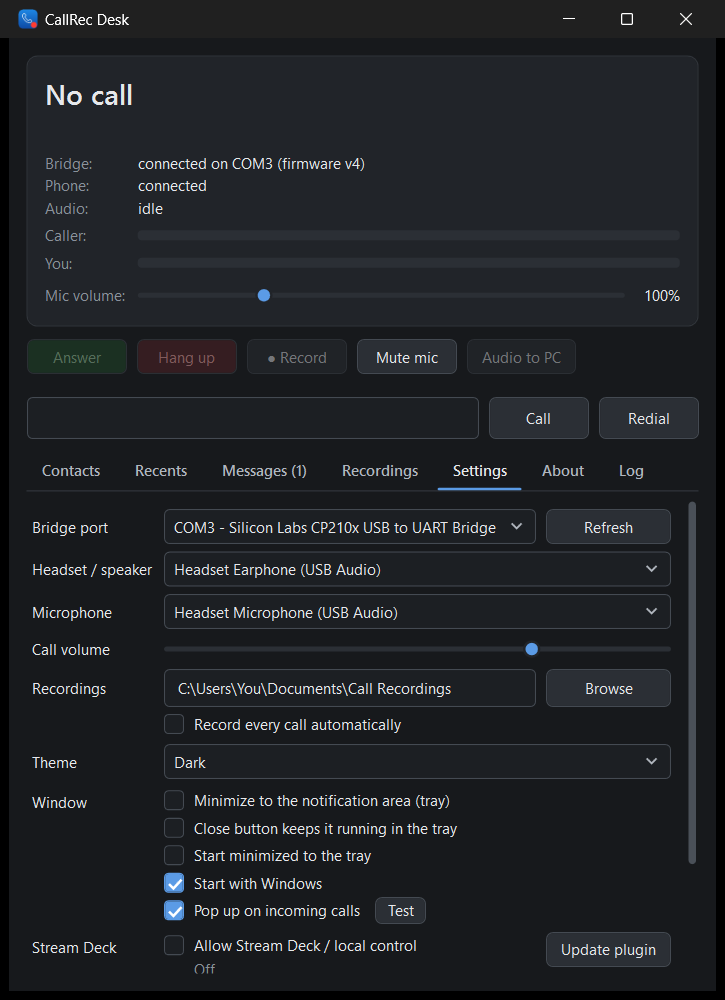
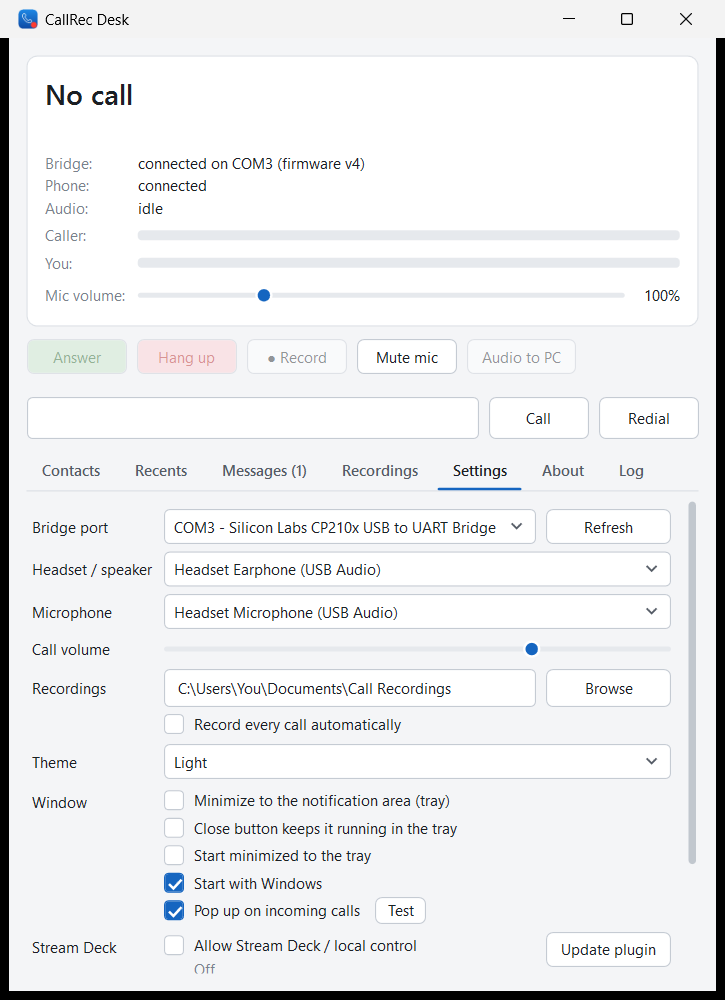
The Settings tab of CallRec Desk in the dark theme, with audio device, theme and tray options. The same Settings tab of CallRec Desk in the light theme.

It flashes the board, and updates itself

No PlatformIO, no esptool. The app bundles the bridge firmware, checks that the chip is a genuine ESP32, compares what is already on the board and writes only the parts that differ. Run it again on an up-to-date board and it writes nothing.

  • If a connected bridge reports an older firmware, a notice offers to flash it.
  • If the USB-serial chip has no working Windows driver, the app links to the manufacturer's official download.
  • The app checks for new versions daily, verifies the download against the release's SHA-256 checksums, and installs it.
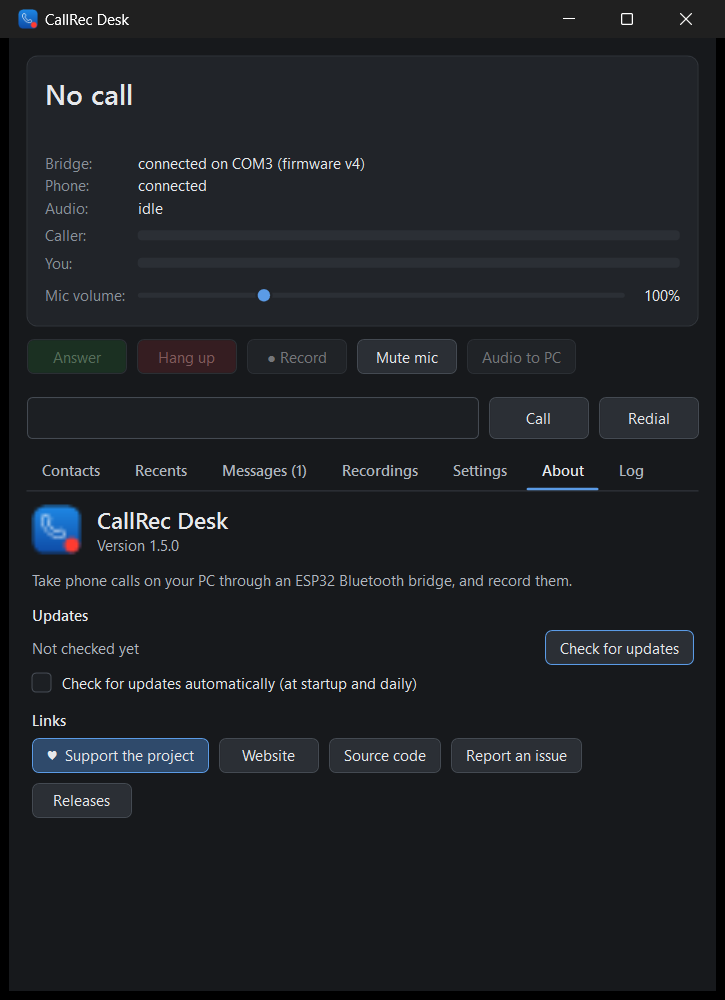
The About tab of CallRec Desk, showing the version number, a Check for updates button and links to the website, support, source code, issues and releases.

What you need

An ESP32 board

A NodeMCU ESP-32S, or any other devkit with the original ESP32 chip. That chip is the one with Classic Bluetooth, which is what phone calls need — an ESP32-S2, S3 or C3 will not do.

A USB cable

A data cable from the board to your PC. That is the whole wiring job: no soldering, no extra parts for the desktop build. CallRec Desk flashes the board for you.

Windows 10 or 11

Plus the .NET 8 Desktop Runtime — the installer offers to fetch it if you don't have it. Setup is about 3 MB and installs per user by default, with no admin prompt.

Getting started in four steps

  1. Download and install

    Grab CallRecDesk-Setup-<version>.exe from the releases page and run it. The setup isn't code-signed, so Windows SmartScreen may say “Windows protected your PC” — choose More info → Run anyway.

    Download for Windows

  2. Plug in the board

    Connect the NodeMCU to a USB port. CallRec Desk finds it, offers to flash the bridge firmware, and does it itself. You can also pick the COM port by hand under Settings.

  3. Pair the phone with “CallRec”

    Open Bluetooth on your phone and pair with CallRec. It appears like a headset or car kit. After that it reconnects on its own.

  4. On iPhone, switch two things on

    Go to Settings → Bluetooth → ⓘ next to CallRec, and turn on Show Notifications (for text messages) and Sync Contacts (so callers show up by name). Most Android phones just ask you to allow message access.

Then pick your headset and microphone under Settings — the default is whatever Windows has set as the communications device.

What's new

v1.7.1 · latest

  • The bridge no longer forgets the phone. A failed reconnect used to delete the pairing, which on iPhone also switched Show Notifications back off. Bridge firmware v7 keeps a backup of the pairing and restores it automatically — and the existing pairing survives the firmware update.
  • Text messages reconnect by themselves. If the phone refuses message access, the app now asks again every 30 seconds, so switching the setting on works without reconnecting the phone.
  • Contacts aren't wiped by an empty sync. If the phone sends an empty phone book, the last synced contacts and recent calls are kept, and the log says which switch to turn on.
  • Moved to git.ttdk.eu/tomtom/CallRec — updater, links and release history all live there now. Copies older than 1.7.0 look for updates at the old address and need one manual update.

v1.7.0

  • Stream Deck call profile. Your Stream Deck XL or Stream Deck + switches to a CallRec Desk call profile while a call is ringing or running, then switches back.
  • Contact list on the Stream Deck. A key opens your contacts as an on-screen card that stays on top without taking focus, plus a contacts profile on the keys and dials.
  • Speed dial keys, and new actions you can place on your own profiles.

All releases and full notes →

Questions

Does it work with an iPhone, or only Android?

Both. The bridge presents itself as an ordinary hands-free device, so the phone treats it like a car kit — there is no app to install on the phone. On iPhone, remember to turn on Show Notifications and Sync Contacts for CallRec under Settings → Bluetooth → ⓘ. Most Android phones share everything once you allow message access.

I have dual SIM. Which line does a call go out on?

The phone decides, exactly as it would with a car kit. On iPhone that means the line you have set as preferred for that contact, or your default line. CallRec Desk has no say in it.

Is it legal to record my calls?

That depends entirely on where you are. In Denmark you may record a conversation you take part in; other countries differ, and some require everyone's consent. Check the rules where you live — and where the other person is — before you record a call.

Do messages I send from the PC go out as SMS or as iMessage?

They go out as SMS, unless the iPhone itself decides to send them as iMessage. That is the phone's call, governed by its Send as Text Message setting.

Where do my recordings go?

Into Documents\Call Recordings on your PC, as stereo WAV files named yyyy-MM-dd_HH-mm-ss_<number>.wav. The caller is on the left channel and you are on the right, so you can separate the two voices afterwards.

What happens to calls when my PC is off?

They stay on your phone. The app sends the bridge a heartbeat every second; if the bridge hears nothing for five seconds it disconnects and stops accepting connections. It also boots asleep, so on a plain USB charger it never takes calls. When the app comes back, so does the bridge.

Do I have to build the firmware myself?

No. CallRec Desk carries the firmware with it and flashes the board for you — it even checks what is already on the board and writes only what changed. Building from source is possible if you want to; the repository has the instructions.

What does the website collect about me?

Nothing. No analytics, no trackers, no cookies, no external fonts or CDNs. The only requests that leave this site are the ones you start yourself by following a link to git.ttdk.eu, plus one optional lookup there to show the current version number on the download button.

Give it a try

One board, one cable, one installer.

Download for Windows Source code